Ask most teams whether a sensitive document is secure and they will tell you who has access to it. That is the honest answer to the wrong question. Access is one layer of protection, and real Microsoft 365 information protection runs far deeper – the content security controls that actually keep confidential material safe span from deciding who gets in, to governing what they can do once inside, to proving on demand exactly what they did. A document that only one person can open is still exposed if that person can screenshot it, email it to a personal account, or copy it onto a USB stick. Real content security is layered, and this post walks through all six layers and how to run them inside the Microsoft 365 tenant you already own.
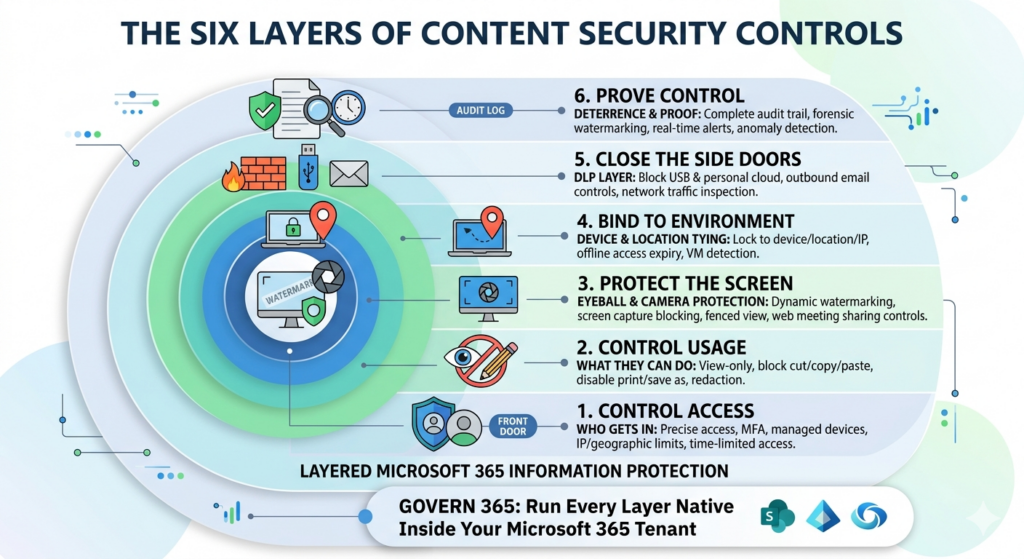
Layered Microsoft 365 information protection: from the front door to the audit log
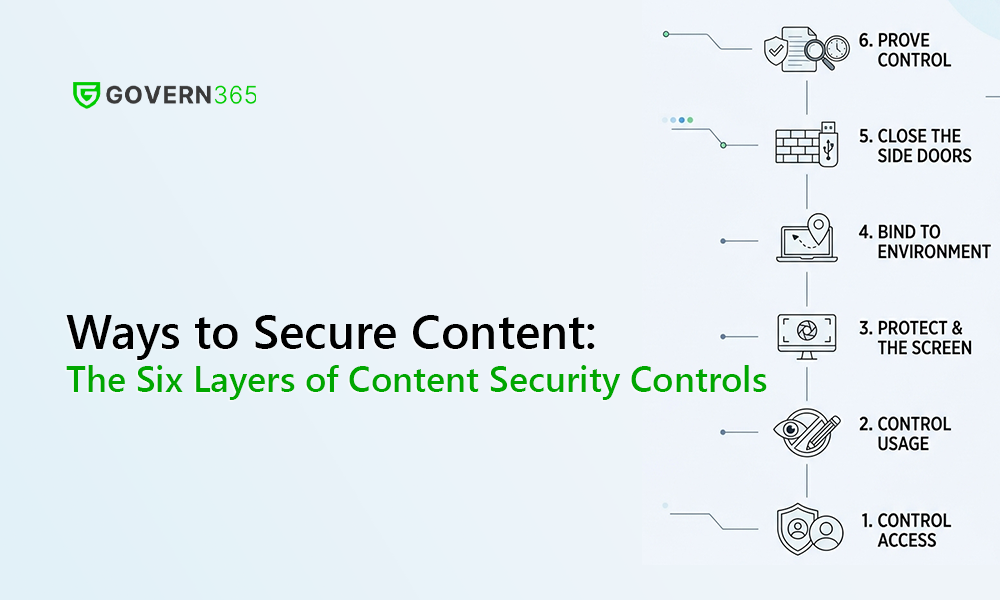
The model is simple to hold in your head: six layers, moving from the front door to the audit log. Skip any one of them and you have left a gap that determined misuse – or an ordinary mistake – will eventually find.
Layer 1: Control access – who gets in
The first layer is the one everyone already does, and it is still where most programs stop. Controlling access means deciding, with precision, who can open a piece of content and under what conditions. Strong access content security controls go well beyond a password. They include multi-factor authentication, restricting access to managed devices only, and IP or geographic limits so a file cannot be opened from an unexpected country. They also include the time dimension that static permissions miss: time-limited access that expires automatically, instant revocation that pulls entitlement back in a single action, and granular permissions that grant the minimum each person actually needs.
Access control is necessary, but on its own it is brittle. The moment an authorized user opens a document, the question shifts from who to what – and that is the next five layers.
Layer 2: Control usage – what they can do
Once someone is inside, usage controls govern what they can actually do with the content. This is where data-centric security earns its name, because the protection travels with the document rather than living only at the door. Usage controls let you set a file to view-only with no editing, block cut, copy, and paste, disable or limit printing, and allow controlled download rather than open extraction. They can block saving to an unprotected format – the classic move of “Save As” stripping the protection off a governed file – and apply redaction so a viewer sees only the portion of a document they are cleared for.
The point of this layer is that being able to read something is not the same as being able to take it. Usage controls separate the two.
Layer 3: Protect the screen – the eyeball and the camera
Even a perfectly locked-down file is vulnerable to the oldest exfiltration method there is: someone reads it on screen and captures what they see. The third layer protects the display itself. Dynamic watermarking stamps the viewer’s identity, the time, and the session across every page, so a photographed or leaked screen traces straight back to a person. Classification markings make sensitivity obvious and persistent. A secure document viewer with fenced view limits what is rendered at once, while screenshot blocking and screen-recording blocking stop the capture outright, and web-meeting sharing controls prevent a confidential file from being broadcast to a call.
Watermarking is as much deterrence as defense. People behave differently when they know their name is on every page they open.
Layer 4: Bind to the environment – device and location
The fourth layer ties content to the context it is allowed to live in. You can lock a document to a specific device so it simply will not open elsewhere, lock it to an approved location or IP range, and grant offline access that still carries an expiry so a cached copy does not live forever. Virtual-machine and remote-session detection closes a subtle gap that many tools miss, where a user opens protected content inside an environment designed to bypass the controls around it. Binding content to the environment turns “this file is protected” into “this file is protected here, on this device, until this date.”
Layer 5: Close the side doors – the DLP layer
Most data does not leave through the front door. It leaves through the side doors, which is exactly what data loss prevention is built to close. This layer blocks USB and removable media, blocks personal cloud storage and webmail, applies outbound email controls so sensitive content cannot be forwarded out of policy, and inspects network traffic for exfiltration patterns. These are the routes that bypass every permission you set on the document itself, which is why a serious content security posture treats data loss prevention as a peer to access control, not an afterthought.
Layer 6: Prove control – deterrence and proof
The final layer is the one boards, regulators, and auditors actually ask about, and the one most programs cannot answer. Controlling content is not enough; you have to be able to prove what happened to it. This layer is built on a complete content audit trail that records who viewed and downloaded what, and when, plus forensic watermarking that survives capture, real-time activity alerts, and anomaly detection that flags behavior outside the norm before it becomes an incident. When the question is “can you demonstrate this stayed protected,” proof is the difference between a defensible position and a hopeful one.
Together these six layers are the full set of content security controls – the complete picture of Microsoft 365 information protection, and the reason a single layer, however strong, is never the whole answer.
Secure by Design: How Modern Organizations Collaborate Without Compromise
By Niraj Tenany
Procurement is one chapter of a much larger story. In Secure by Design, I lay out why the perimeter has stopped meaning what it used to mean, how regulation and generative AI have rewritten the threat model for every externally collaborative function in the enterprise, and what a Microsoft 365-native controlled sharing posture actually looks like in practice.
If this blog made you uncomfortable about your supplier sharing, the book will do the same thing for finance, legal, HR, sales, and M&A.
Run every layer as native Microsoft 365 information protection
The instinct when you read a list like this is to assume it requires a separate security product and a separate place to put your data. It does not. Govern 365 runs all six layers inside your own Microsoft 365 tenant, built on SharePoint and Entra ID and integrated with Microsoft Purview for the audit and reporting layer. Access, usage, screen protection, environment binding, the DLP layer, and proof all operate on the Microsoft 365 information protection foundation you already license – so sensitive content never has to leave your environment for a third-party portal to be properly secured. Govern in place, rather than copy out to control.
That distinction matters for the most collaborative, highest-risk content you handle: virtual data rooms, due diligence, board materials, and competitive sourcing. The same layered model applies to all of them, and it applies without exporting your data anywhere.
Frequently asked questions
Content security controls are the layered protections applied to a document or file to govern who can access it, what they can do with it, how it is displayed, where it can live, how it can leave, and how its use is recorded. A complete set spans six layers: access control, usage control, screen protection, environment binding, data loss prevention, and audit or proof. Relying on any single layer leaves a gap.
No. Access control – deciding who can open a file – is only the first of six layers. Once an authorized user is inside, they may still be able to copy, print, screenshot, download, or email the content unless usage, screen, environment, and DLP controls are also in place. And without an audit trail, you cannot prove what happened. Access control is necessary but never sufficient on its own.
Dynamic watermarking overlays the viewer’s identity, timestamp, and session details across every page of a document as they view it. If a screen is photographed or a file is leaked, the watermark traces the exposure back to a specific person and moment. It works as both a forensic tool and a deterrent, because users handle content more carefully when their identity is visibly attached to it.
Data loss prevention (DLP) is one layer within a broader content security model. DLP focuses on the exit routes – blocking USB drives, personal cloud, webmail, risky outbound email, and exfiltration over the network. Content security also covers access, usage rights, screen protection, environment binding, and audit. DLP closes the side doors; full content security controls protect the document at every stage.
Yes. A tenant-native approach to Microsoft 365 information protection, built on SharePoint, Entra ID, and Microsoft Purview, can deliver all six layers – access, usage, screen, environment, DLP, and audit – inside your existing Microsoft 365 environment. Govern 365 does this so sensitive content stays in your tenant and is never handed to an external third-party portal to be secured.
Through the audit layer. A complete content audit trail logs every view, download, question, and action with a timestamp, while forensic watermarking, activity alerts, and anomaly detection capture and flag behavior in real time. When an auditor, regulator, or board asks you to demonstrate control, you generate a complete activity report on demand rather than reconstructing events from memory.
Related reading
- Govern 365 product overview – layered content security inside your Microsoft 365 tenant.
- Govern 365 Virtual Data Room – the secure, tenant-native data room these controls are built for.
- Netwoven data security and governance services – help designing your content security and governance model.
- Secure by Design – Niraj Tenany’s book on secure collaboration in Microsoft 365.
Take the next step
Book a Govern 365 content security demo to see all six layers – access, usage, screen protection, environment binding, DLP, and proof – running as native Microsoft 365 information protection in a live tenant. Prefer to read first? Pick up Secure by Design for the broader playbook on secure, governed collaboration in Microsoft 365.