When you’re running a deal, a regulated project, or any engagement that involves sharing sensitive documents outside your company, one question always comes up first: who gets in, and how do you control them once they’re there?
Govern 365 Virtual Data Rooms (VDRs) are built to answer exactly that. They combine the familiar governance of SharePoint with a purpose-built VDR experience, so you can invite auditors, counsel, investors, or partners into a secure space without losing control of the perimeter. Here’s how external user management works – and what every VDR owner should know before sending the first invitation.
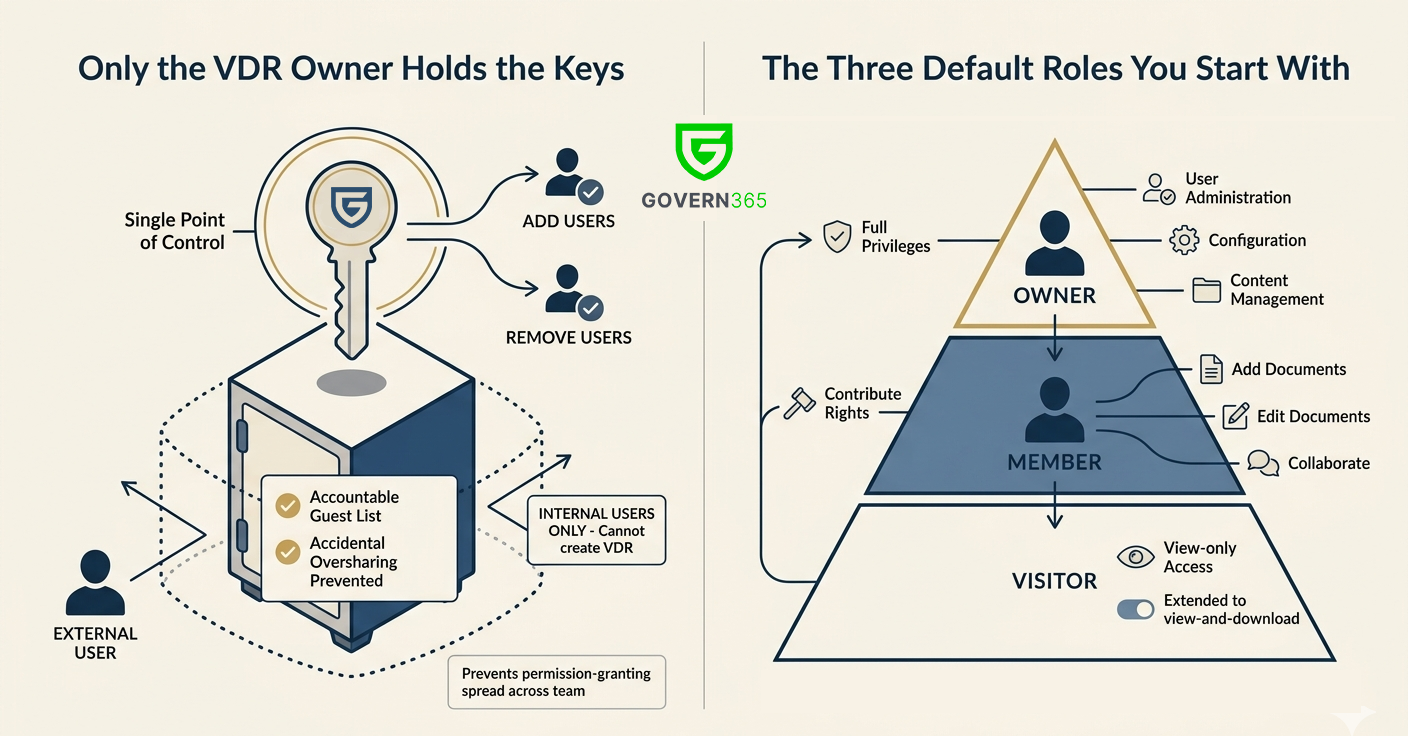
Only the VDR Owner Holds the Keys
In Govern 365, there’s a clear rule about who manages access: only the VDR owner can add or remove users. That single point of control is intentional. It keeps the guest list accountable to one person (or a small set of internal owners) and prevents the kind of accidental oversharing that happens when permission-granting spreads across a team.
VDR owners must always be internal users of the organization that purchased Govern 365. External users – no matter how trusted – cannot create a VDR or invite other users on their own.
The Three Default Roles You Start With
Every VDR comes with three roles out of the box, and for most engagements these are all you’ll need:
- Owner: full privileges, including user administration, configuration, and content management.
- Member: contribute rights, so they can add, edit, and collaborate on documents.
- Visitor: view-only access, which can be extended to view-and-download depending on how you configure the role.
Think of this as the 80% solution: most external participants land in Visitor (your auditors, reviewers, and potential investors), some trusted collaborators get Member access, and ownership stays firmly with your internal team.
When You Need More Than the Defaults
Sometimes three roles aren’t enough. A deal team might need reviewers who can comment but not download. A compliance workstream might need read-only access to some folders and contribute rights to others. That’s where custom permissions come in.
Govern 365 lets you define permissions that go beyond the defaults, and you can apply them to individual users or to groups. Because the platform is built on SharePoint, you also get the full SharePoint permissions model to work with – libraries, folders, item-level controls, permission inheritance, and groups all behave the way your administrators already expect. If your team already knows SharePoint, there’s no new permission language to learn.
Inviting External Users: Three Paths In
External users are the whole point of a VDR, so Govern 365 gives you multiple ways to onboard them depending on what kind of identity they bring.
1. Corporate Account via SSO
This is the cleanest path. If the external user’s company allows it, they can sign in to Govern 365 using their existing corporate account through single sign-on. Their identity, their MFA, their lifecycle – all managed by their employer. You get a guest who is governed by their own company’s security posture, which is usually exactly what you want.
2. Govern 365 Vault Account
Some companies have strict policies that block their employees from using corporate accounts for third-party SSO. When that happens, the data room owner can issue the external user a Govern 365 Vault account – a dedicated identity for accessing the VDR.
The nice thing about Vault accounts is that you’re not giving up security controls. The VDR owner can enforce multi-factor authentication on the Vault account, aligned with their own corporate security policies, using methods approved by their administrators (Authenticator App, phone, SMS).
3. Personal Email Invitations
Not every external participant has a corporate email to work with. Advisors, individual investors, expert witnesses, and board members often use personal email like Gmail. Govern 365 supports this too – the VDR owner invites the personal email address directly, and no Vault account is required. The personal account becomes the identity.
Under the Hood: Entra ID and B2B Collaboration
Here’s the piece that matters for your IT and security teams: every external user invited to a VDR is provisioned as a guest in your organization’s Entra ID tenant, using Microsoft’ native B2B collaboration framework. That invitation follows the standard Microsoft B2B collaboration redemption process.
Practically, this means Govern 365 isn’t bolting on a parallel identity system. External guests show up where your admins already manage identity, governed by the same B2B rules you already apply – conditional access, access reviews, guest lifecycle policies, and everything else in the Entra ID toolkit.
Quick Reference: Account Types
To sum up the external account landscape:
- Corporate account (via SSO): for external users whose companies permit third-party SSO.
- Govern 365 Vault account: for external users whose corporate policy blocks SSO, but who still need a governed identity with MFA.
- Personal email (e.g., Gmail): for individual participants without a suitable corporate account; invited directly by the VDR owner.
In all three cases, the user ends up as an Entra ID guest, and the VDR owner retains full control of their access.
Where to Point Your External Users
When you invite someone into a VDR, they’ll want a quick orientation before they click around. Govern 365 maintains a Quick Start Guide for external users at – a good link to include in your invitation emails so guests can get themselves oriented without a call.
The Bottom Line
External user management in a VDR is really a question of trust boundaries: who controls identity, who controls access, and how cleanly you can undo both when the engagement ends. Govern 365’s model – internal-only ownership, three default roles with SharePoint-grade customization, flexible identity options, and Entra ID B2B under the hood – is designed to keep all three of those questions easy to answer.
Before you send the next invitation, check three things: who owns the room, what role they’re landing in, and which of the three identity paths fits them. Get those right, and the rest of the governance takes care of itself.